
How to Change Your Minecraft Skin
A Minecraft skin is a small PNG image, 64×64 pixels, that wraps around your character. Java Edition and Bedrock Edition both use that format, but you change your skin in different places. Below are the exact steps to change your Minecraft skin in each edition, plus fixes for the most common problems.
Before you start
- A skin file. A PNG in the standard skin layout, 64×64 pixels (older 64×32 skins also work in Java). JPG photos and screenshots won’t work. No skin file yet? Here’s how to make a Minecraft skin of yourself.
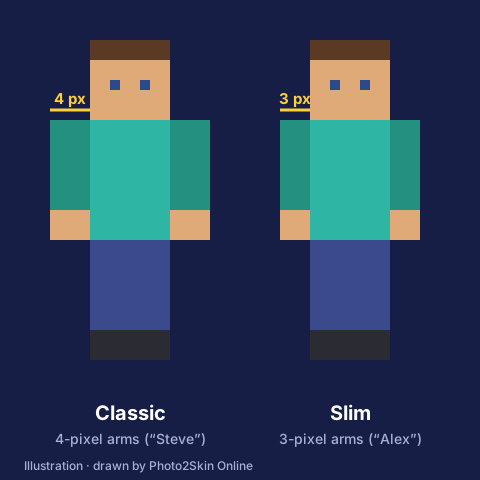
- The arm model. Skins are drawn for Classic arms (4 pixels wide, the “Steve” shape) or Slim arms (3 pixels wide, the “Alex” shape). Pick the one the skin was made for.
- Your edition. On PC with the Minecraft Launcher you most likely play Java. On phones, tablets, consoles and the Microsoft Store version you play Bedrock.
Minecraft skin file specs
Most failed attempts to change a Minecraft skin come down to the file itself. The game is strict about the format, so check these points first.
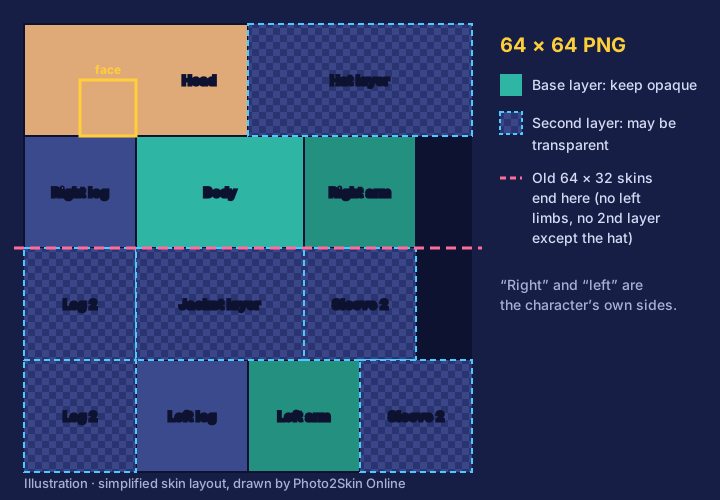
- Size and format: a PNG of 64×64 pixels. Java Edition still accepts the older 64×32 layout from before version 1.8; in those files the left arm and left leg simply copy the right ones, and only the head has a second layer. Don’t save as JPG: it has no transparency and blurs the pixel edges.
- Fixed layout: every body part is unfolded flat onto a fixed spot in the image. The head sits top left, the body and right limbs below it, the left limbs along the bottom. Paint outside those areas and nothing shows up in game.
- Two layers: the base layer covers the body and should be fully opaque. The second layer (hat, jacket, sleeves and pant legs) floats slightly above it and may be transparent. That outer layer is how hair volume, glasses and hoodies get a bit of depth.
- Arm width: Classic arms are 4 pixels wide, Slim arms 3 pixels wide. The image is the same size either way; a slim skin just leaves one column of each arm area unused. Choosing the wrong model leaves black stripes or cut-off sleeves.
Change your skin in Minecraft: Java Edition
In the Minecraft Launcher
- Open the Minecraft Launcher and select Minecraft: Java Edition on the left.
- Click the Skins tab at the top.
- Click New skin in your skin library.
- Give the skin a name, then choose Classic or Slim arms.
- Click Browse and pick your PNG file.
- Click Save & Use.
On minecraft.net
No launcher at hand? Sign in at minecraft.net with your Microsoft account, open your profile, choose Minecraft: Java Edition and select Change skin. Pick Classic or Slim, upload the PNG and confirm. The skin is stored on your account, so it follows you to every computer.
Then start or rejoin a world or server and press F5 to look at yourself.
Change your skin in Minecraft: Bedrock Edition
These steps change your Minecraft skin on Windows, Android and iOS.
- On the main menu, open the Dressing Room.
- Pick the character slot you want to change, or create a new one.
- Open the Classic Skins tab (the clothes hanger icon).
- Under Owned, select Import, then Choose New Skin.
- Pick your PNG file from your device.
- Choose the Classic or Slim arm model and confirm.
The imported skin is now on that character. Jump into a world and switch to third person to check it.
Xbox, PlayStation and Nintendo Switch
Consoles can’t import a custom PNG skin. Mojang has said there are no plans to add it. On consoles you can use the default skins, skins you own from the Marketplace, or Character Creator items.
Skin didn’t change? Quick fixes
- Black or see-through arms: the arm model doesn’t match the skin. Add it again with the other model (Classic vs Slim).
- File won’t upload: make sure it is a PNG of exactly 64×64 (or 64×32 for Java) in the standard skin layout.
- Old skin on a server: leave and rejoin. Some servers take a few minutes to pick up a new skin.
- No Import button on Bedrock: you’re probably on a console, where custom skins aren’t supported.
- Changed it in Java, still old in Bedrock: the two editions keep skins separately. Add the skin in each one.
More from Photo2Skin Online: photo to Minecraft skin.