Minecraft Skin Size and Layout Explained
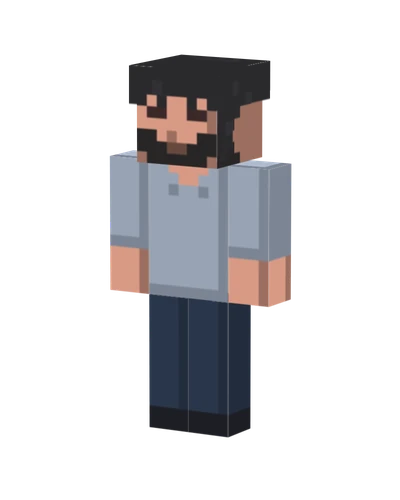
Make my skin — no-watermark from $1
The standard modern Minecraft skin size is 64×64 pixels, saved as PNG. That small square contains a map of the character's body surfaces, rather than a single front-facing picture. The game wraps each rectangle around the matching part of the model. A file can have the right dimensions and still look wrong if the face, arms or legs are painted in the wrong places.
For Photo2Skin, the practical target is a 64×64 PNG with Classic arms. Photo2Skin assembles that layout using sampled photo colors. Keep the resulting file at its original dimensions when saving, moving it between devices or importing it into the game.
Minecraft skin size: what fits inside 64×64
A 64×64 canvas has 4,096 pixel positions. They are divided between the head, torso, arms and legs, including front, back, side, top and bottom faces. Some positions are reserved for outer-layer surfaces, and some parts of the canvas are unused. Painting the entire square as one portrait puts colors across unrelated body parts.
The front of the head is only 8×8 pixels. The torso front is 8 pixels wide and 12 pixels tall. Classic arms are 4 pixels wide, while Slim arms are 3 pixels wide. These small areas explain why strong shapes and a limited palette work better than detailed photographic shading. Eyes and hair need to communicate with very few pixels.
How legacy 64×32 skins differ
Older skins use a 64×32 canvas. This legacy format has less room for independent body-part textures: the limbs are mirrored rather than having the full modern arrangement for separate left and right limbs. It also lacks the modern set of outer clothing layers, although the head has a hat layer.
A legacy file is not simply the top half of any modern skin. Converting it correctly requires placing and mirroring the relevant limb surfaces into a modern layout. Use a skin-aware editor or converter when you need that conversion. Stretching the image vertically to 64×64 doubles the pixels in the wrong places and breaks the texture map.
Photo2Skin's standalone 3D viewer accepts 64×64 textures, not legacy 64×32 files. If a file is rejected there, inspect its actual pixel dimensions before changing its name or extension. Renaming a JPG to PNG also does not change its format.
Base layers and outer layers share one file
A modern skin stores a base layer and an outer layer in the same PNG. The base defines the underlying body. The slightly larger outer surfaces can add a fringe, glasses, sleeves or a jacket effect. They are texture regions, not separate image files you need to import one at a time.
Transparency lets the outer layer reveal the base beneath it. Keep the base body opaque for a dependable result; transparent base areas are not a reliable way to make body parts disappear across game contexts. When editing, check which layer is active before erasing pixels. Accidentally painting the outer layer solid can hide useful details underneath.
Rotate the model and inspect seams at the shoulders, sides and back. A nice front view can conceal mismatched sleeve edges. Toggle the outer layer off and on to identify whether a stray patch belongs to the clothing overlay or the underlying body.
What people mean by HD skins
An HD skin uses a higher-resolution texture, often a multiple of the standard layout. More pixels can allow finer detail, but support depends on the edition, client and any required modifications. A high-resolution file is not a universal replacement for a standard Java skin. Check the exact environment where you intend to use it before spending time painting extra detail.
Photo2Skin makes standard 64×64 skins, not HD skins. Enlarging one of its outputs only enlarges existing pixels; it adds neither new facial detail nor HD support. For a separate square image with a pixelated look, use the photo-to-pixel-art tool. Its output is artwork, not a mapped character texture.
Check a skin file before importing it
Confirm three things: PNG format, 64×64 dimensions and the correct arm model. Keep an unedited backup before opening the file in a photo app, since automatic resizing or smoothing can change crisp pixel boundaries. Send it as a file when possible, rather than through a service that compresses images into photographs.
If you need a new starting point, the photo-to-skin generator creates Classic-arm textures. Generating and saving with a visible watermark costs nothing; one credit saves without the watermark. Keep that saved PNG separate from screenshots of the character, which cannot be imported as skins.