Your skin, your profile picture
Minecraft Avatar Maker
Sign in with Google or email via Clerk to buy credits. New accounts get 3 free credits once. Generating a new skin through the photo, image, Roblox or text tool costs 1 credit for a front & back preview and 2 more credits for the chosen full clean skin.
Use this Minecraft avatar maker to turn your skin into a PNG profile picture. Start with a skin you already have, compare the available avatar styles and choose a picture that keeps your character recognizable in a small profile circle.
Starting with a photo? First make a skin from your photo, then bring the skin PNG here to create your avatar.
- Skin to PFP
- Avatar styles
- PNG export
- Unlock clean export
Avatar styles
One skin · six looks
1Open a skin PNG
Need a skin first? Make a skin from your photo, then return here.
1Skin loaded
No skin selected
2Compare avatar styles
How to use the Minecraft avatar maker
- 1
Open a skin PNG
Use the texture file for the character you want in your profile picture. A screenshot of a character is a different kind of image, so keep the original skin file when you save a skin.
- 2
Compare avatar styles
Look at the choices shown in the tool and check the face, hair and visible clothing. A style with more of the body can show an outfit; a closer view gives the face more space.
- 3
Unlock and save
Unlock your chosen style for 1 credit, including your own uploaded PNG. Save the avatar as a PNG, then open it before changing your profile image. Check that the important details still look clear when the picture is small.
Make a Minecraft avatar from photo, through a skin
If your starting point is a selfie or portrait, first make a skin from a photo on Photo2Skin.online. Check the skin and save its PNG, then return here to turn that skin into an avatar. This route gives you a blocky character based on the skin. It does not copy a photograph into a realistic headshot.
Choose a PFP that reads well at small sizes
PFP means profile picture. Start by checking the face at a small size. If the eyes, hair and hat blend together, try another available style with a closer view. Many services display profile images inside a circle, which can hide the corners of a square image.
Pick an avatar size for its destination
Decide where the picture will go before you export it. Making an image larger after export does not add character detail. Keep the original exported PNG, and use it when updating other profiles.
Watermarks and unlocking a clean avatar
Every avatar preview stays watermarked until you unlock a clean export for 1 credit, including skins you upload yourself. Compare all six styles, unlock the one you want, then save the PNG. See Pricing. Unlocking an avatar export does not change your in-game skin.
Avatar, skin preview or full-body pose?
Use this page when your goal is a profile picture. If you want to inspect the original skin from different sides, open the Minecraft skin 3D viewer. If the body position is the focus, use the Minecraft skin poser for the pose-and-export workflow.
Minecraft avatar maker FAQ
What does a Minecraft avatar maker do?
It turns a Minecraft skin into a profile image. The skin supplies the face, hair and clothing, while the avatar presents that character as a picture. You can use the resulting PNG as a PFP wherever the service accepts that image format and size.
Can I make a Minecraft avatar from a photo?
You can start with a photo by making a skin on Photo2Skin.online first. Save that skin, then open it in the avatar maker. This is a photo-to-skin-to-avatar workflow, so the result follows the blocky skin rather than reproducing a photographic headshot.
Do I need a Minecraft username?
No. This Minecraft avatar maker starts from a skin PNG only—there is no username lookup on this page. If your skin lives on an account, export or save a copy of the skin PNG first, then open that file here.
Is an avatar PNG the same as a skin PNG?
No. An avatar PNG is a picture of your character for a profile or other image placement. A skin PNG is a texture layout used to dress the character in the game. Keep the original skin file if you also want to use the character in Minecraft.
Which avatar style works best as a PFP?
A close crop such as Head close or Front face usually makes the face easier to recognize at small sizes. Wider styles like Bust or Full bust can show clothing, but those details may disappear in a small circular profile image. Compare all six styles at the size where people will see your picture.
Can I use the picture on Discord or YouTube?
You can use a PNG profile picture where the service accepts it. Check the current image requirements and preview the crop before saving your profile. Leave room around the head so a circular crop does not hide the hair or hat.
Does making an avatar change my in-game skin?
No. Creating a profile image is separate from changing the skin on your Minecraft account. Use the original skin PNG and follow the skin-changing steps for your edition if you want the same character in the game.
Why is there a watermark on my avatar, and how do credits work?
Every avatar preview on this page stays watermarked until you unlock a clean export for 1 credit—including skins you upload yourself and skins you made on Photo2Skin.online. Unlock the style you want, then save the PNG. See Pricing. Unlocking an avatar does not change your in-game skin.
How do I make a full-body pose instead?
Use the Minecraft skin poser for a picture focused on body position. Choose an avatar when the main goal is a recognizable profile image. Choose a pose render when the gesture, silhouette or full outfit matters more than a close face crop.
More tools and guides
Plan an avatar that stays readable in a small circle
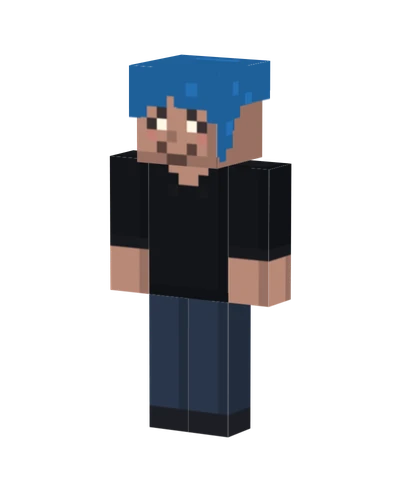
A skin texture and a profile avatar serve different purposes. Open the PNG skin in the avatar maker, then compare the framing before exporting. The sample below is an existing profile-picture illustration, not a promise that every uploaded skin produces this composition.
| Crop check | Look for | Adjustment to try |
|---|---|---|
| Face position | Eyes sit comfortably inside the central area. | Keep the hairline and chin clear of the edge. |
| Circular mask | Corners may be hidden by the destination app. | Leave space around hair and shoulders. |
| Small display size | The face remains readable when the image is reduced. | Prefer a simpler composition if clothing distracts from the head. |
| Texture versus avatar | An unfolded skin PNG looks like separated rectangles. | Keep the skin file for Minecraft and the avatar PNG for your profile. |
Follow the profile-picture framing walkthrough for pose and crop decisions before saving.