Selfie to Minecraft skin · Choose your look
Photo to Minecraft Skin – MC Photo2Skin Official Site
Photo2Skin Online is the MC Photo2Skin official site — the home of photo to Minecraft skin. Add a selfie and turn its colors into a 64×64 skin, right on your device.
Choose Classic, Cartoon, Knight or Spooky. Save with a watermark, or without it using one credit.
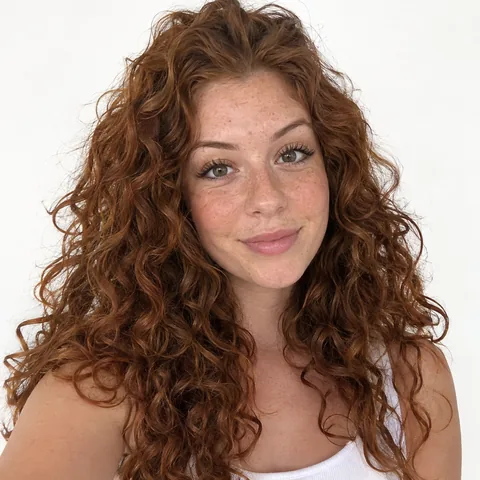
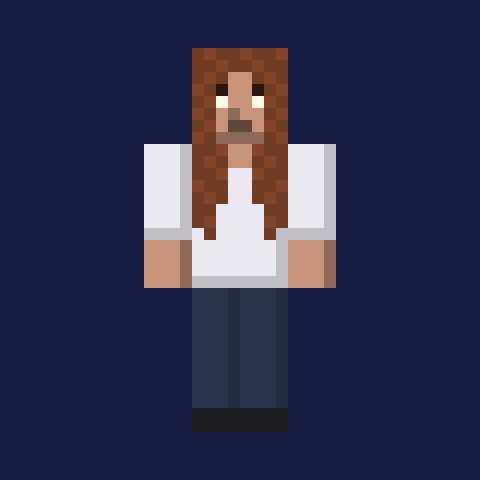
Example portraits are AI-generated, not real people
From a face to a blocky look
Nine photo and Classic skin pairs, made with the same local converter you use here. Each front view shows the generated skin’s face, hair and clothing colors.

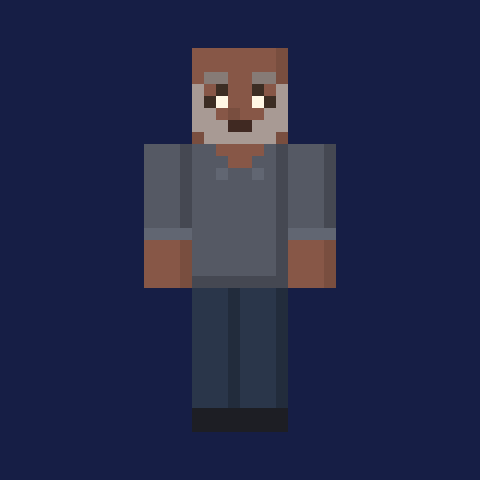

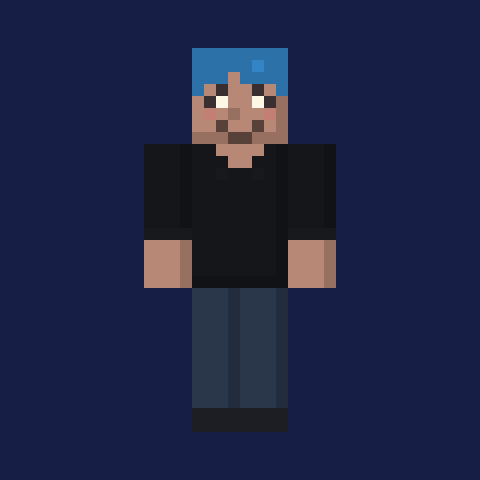

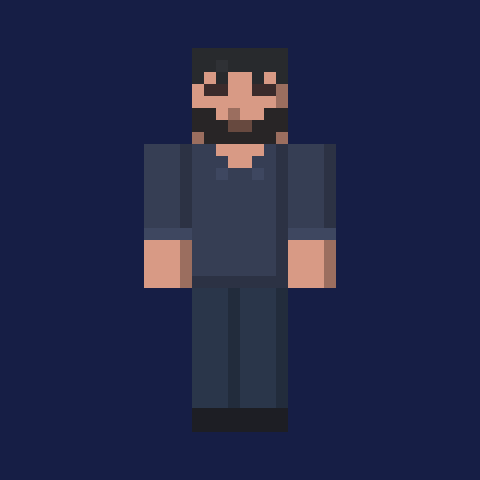

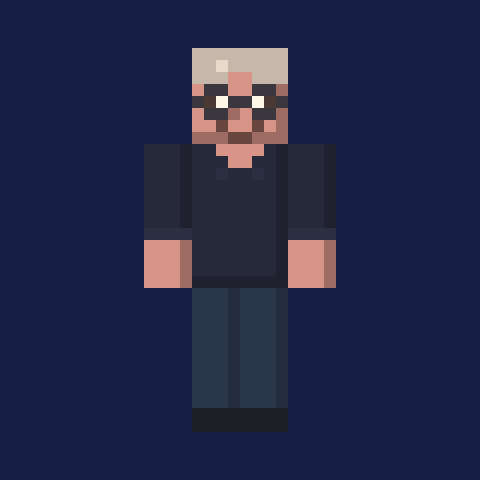

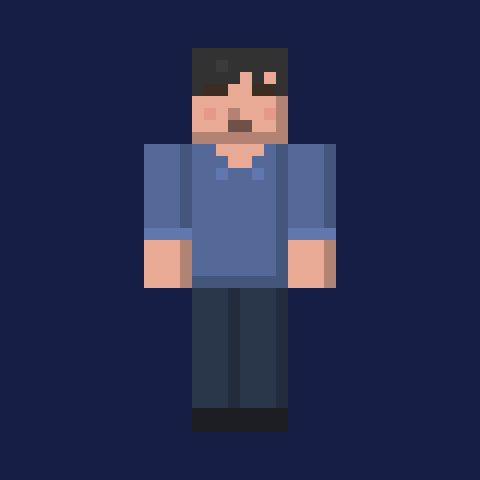

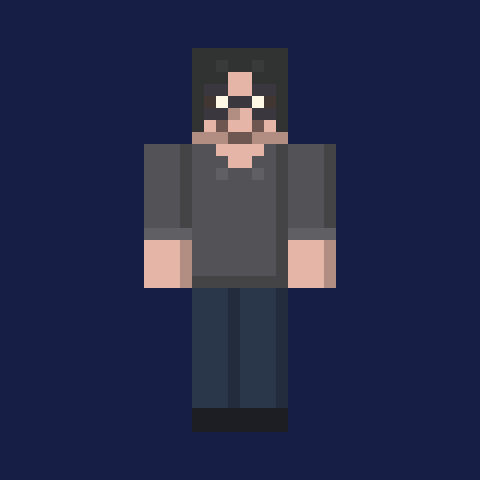

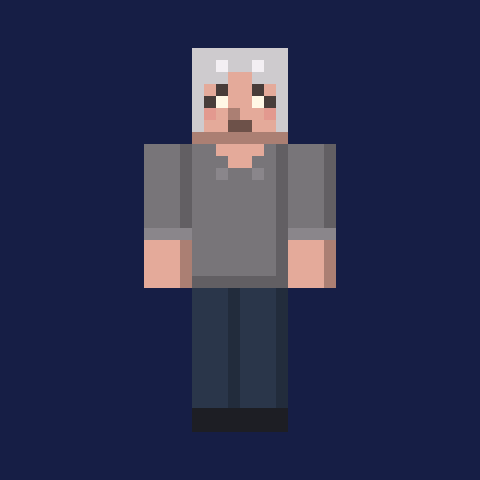

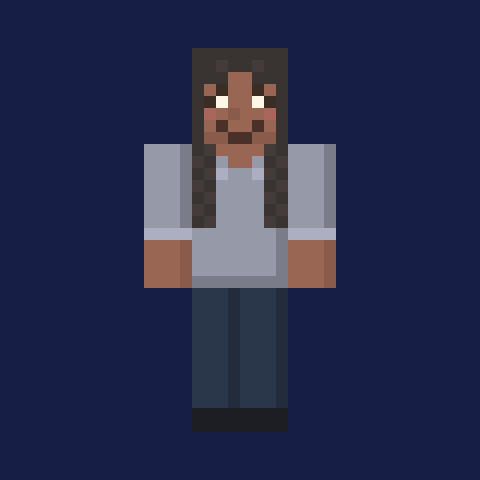

Classic · Java
Your photo and style
View your skin here. Choose Save PNG to save it.
Buy creditsPreparing
Your skin will be ready in about 60 seconds (about a minute).
Your skin will appear here when ready. Using a credit also covers Save PNG.
3D view
Drag to rotate, or use the sliders. Open the Minecraft Skin 3D Viewer to view another PNG.
1 credit · packs from $1.00
Save with watermark · 1 credit for no watermark
Java: open Minecraft Launcher → Skins → New skin, choose Classic and select the PNG. Bedrock on mobile or Windows: Dressing Room → Classic Skins → Owned → Import. Consoles cannot import a custom PNG. Full import instructions.
How photo to Minecraft skin works
- 1
Snap or pick a selfie
Any clear photo of your face works. Hair, glasses and your outfit colors are the details that matter.
- 2
Choose a style
Keep it true to you, go cartoon, gear up as a knight or try a spooky look.
- 3
Make and save your skin
Select Java or Bedrock. Your browser combines original pixel parts with colors from the regions you selected. View your skin from the front and back, then save a 64×64 PNG with a visible watermark. With a credit, save without the watermark and follow the installation steps for your edition. Photos stay on your device; account history stores only generated skins.
Selfie to Minecraft skin examples
Compare four portraits with their photo to Minecraft skin outputs in Cartoon, Knight, Spooky and Classic styles. Each card shows the input and a 3D view of the resulting skin. Select a pixelated skin badge to save its 64×64 PNG.
Example portraits are AI-generated, not real people.


Tips for a picture that makes a good skin
A Minecraft face is only 8×8 pixels, so in any picture to Minecraft skin process the photo you start with matters most. Read our Minecraft skin from picture guide for lighting, crop and file tips. The same tips help if you’d rather make a Minecraft skin of yourself by hand.
- Halloween Minecraft skin from your photo
- Spooky Minecraft skin from your photo
- Christmas Minecraft skin from your photo
- Movie-inspired Minecraft skin from your photo
- Face the camera. Side angles hide one eye and half your hairline.
- Use soft, even light. Window daylight beats a flash and keeps your skin tone true.
- Show your real hair color. Strong backlight can make brown hair look black.
- Keep the background plain. A simple wall keeps your outline clear.
- Wear what you want on the skin. Shirt colors, glasses and hats stand out most.
- One person per picture. Group shots don’t carry enough detail.
Java vs Bedrock skins: what’s different
Both editions read the same 64×64 PNG layout, so one image to Minecraft skin file works in either. What changes is where you add it.
| Java Edition | Bedrock Edition | |
|---|---|---|
| Devices | Windows, macOS, Linux | Windows, Android, iOS, Xbox, PlayStation, Switch |
| Where you set it | Minecraft Launcher, Skins tab | Dressing Room in the game |
| Custom PNG skins | Yes | Windows and mobile only; consoles use Marketplace or Character Creator items |
| Arm model | Classic or Slim | Classic or Slim |
A skin added in Java does not carry over to Bedrock, so add it in each edition. For the exact clicks, see how to install your Minecraft skin on both editions.
What people use a custom skin for
Your server avatar
Friends spot you at spawn and in the player list.
A skin for a friend
A skin based on a friend’s picture, with their OK, is a fun birthday surprise.
Matching group skins
Everyone as knights, so the group looks like a team.
Videos and streams
A skin that matches your real look ties game and camera together.
Photo to Minecraft skin FAQ
How do I turn a photo of myself into a Minecraft skin?
Add a selfie, choose a style and edition, and your browser makes a 64×64 PNG. Save it with a visible watermark, or without the watermark using one credit.
How do I make a Minecraft skin of myself?
Start with a clear selfie, choose a small color palette, and draw the face, hair and outfit on a 64×64 template in a skin editor. Our guide to making a Minecraft skin of yourself walks through the drawing steps and saving the PNG.
How much does it cost?
Saving with a watermark costs nothing. One credit saves one skin without a watermark. Credit packs are 1 credit for $1.00, 5 for $3.99, 15 for $9.99 and 40 for $24.99. They are one-time purchases with no subscription and are valid for 6 months.
How do credits work?
Viewing and saving with a visible watermark costs nothing. One credit = one save without the watermark. Credits are one-time packs with no subscription, valid for 6 months after purchase. Saving the same skin costs nothing. Unused credits expire.
Do I need an account?
Making, viewing and buying credits does not require an account. Guest credits are stored in your browser and can be linked to an account by logging in. Clearing browser data without linking can lose access; contact [email protected] with your payment email for recovery. Sign in to keep your skin history. Your photo never leaves your device; only the generated skin is saved.
Does saving the same skin again cost another credit?
No. Once a skin is saved without a watermark, saving that same skin again does not use another credit.
Is my photo uploaded?
Your photo stays on your device. Before checkout, your browser saves it locally so you can return after payment. Remove the saved photo from the result page or clear this site’s browser data.
What kind of photo works best?
A straight-on selfie in soft daylight, with your whole face and hair visible and a plain background.
Can I use a picture of a friend?
Only if they are happy with it. Ask first, and never use photos of strangers.
Java or Bedrock — which should I pick?
Pick the edition you play. Java Edition runs on Windows, macOS and Linux. Bedrock runs on Windows, phones, tablets and consoles. Custom PNG skins can be imported in Java and in Bedrock on Windows, Android or iOS; consoles use built-in skin options.
How do I put a skin into Minecraft?
Java players add the PNG in the Minecraft Launcher under Skins. Bedrock players on Windows, Android or iOS import it in the Dressing Room. Our step-by-step guide shows both: how to install your Minecraft skin.
Can I turn a picture into a Minecraft skin?
For image to Minecraft skin, add a clear picture of you, choose Classic, Cartoon, Knight or Spooky, and select Java or Bedrock. Your browser makes a 64×64 PNG using colors from your picture. Save with a visible watermark, or without it using a credit, then follow the guides to import it into Minecraft.
Styles and guides for your skin
Choose an overall style in the photo tool, or follow a guide for your portrait and edition. Check Pricing for credit options.