Custom Minecraft Skin from Photo
A custom Minecraft skin from photo references gives your block character a personal starting point: the colors and broad features in your own picture. Photo2Skin lets you choose Classic, Cartoon, Knight or Spooky and an edition, then make a 64×64 PNG in your browser. Start with a portrait that shows the details you care about, and think of the result as a small character texture rather than a photographic likeness.
Open the photo tool with Classic style
Custom Minecraft skin from photo: how to make yours
Choose a single portrait and open the photo tool. Add a JPG, PNG or WEBP image, then check the marked head, face and torso areas. These boxes identify the parts of the picture used as reference; keep the face box around the face rather than filling it with background. Choose a supported style and select the edition you play. Examine the result before you save the PNG.
Keep your original picture beside the character while comparing them. Ask whether the main color groups still feel like you: the hair silhouette, face tone and broad shirt area matter more than a tiny fabric pattern. If the reference looks wrong, try a clearer portrait or adjust the reference boxes. A different source image can be more useful than repeatedly choosing a style with a picture that hides your face.
How style choice shapes the overall look
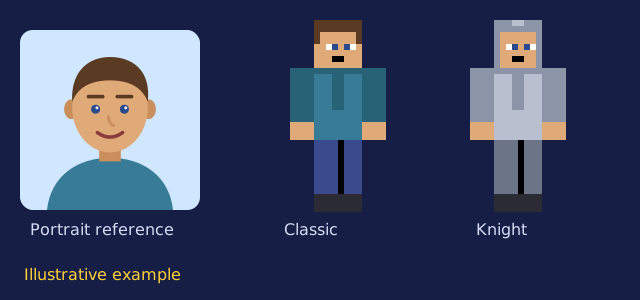
Choosing a style controls the overall look, including outfit colors, accents and mood. Classic uses everyday clothing and natural colors. Cartoon favors bolder colors and outlines. Knight gives the outfit metallic armor colors, while Spooky uses dark clothing and eerie accent colors. Treat each option as a complete visual direction when deciding how your character should feel.
Begin with Classic if familiar colors are your priority. Pick Cartoon for a brighter character, Knight for a fantasy setting, or Spooky for a darker atmosphere. The style names describe the appearance; they do not change what edition can read the file. A knight character can still belong to a peaceful building world, and a colorful character can still explore a dim cave. Choose the mood you want friends to recognize.
Best photos for a personal character
Use a recent head-and-shoulders picture with a plain background. Leave room around the whole hairstyle and show enough of the shirt to establish its main color. A portrait with the face near the center is easier to map than a wide scene where your head occupies a small corner. Avoid a hand across the cheek, a phone covering the chin or a hood casting a deep shadow.
Even lighting helps separate your natural colors from shadows. Look toward a window instead of standing with the window behind you. Keep glasses if they are part of your everyday appearance, but try a camera angle that avoids reflections across both eyes. Obtain permission before using someone else’s portrait. For more preparation advice, read the Minecraft skin from picture guide.
Add your skin in Java and Bedrock
The 64×64 PNG is a texture map with assigned areas for the head, body, arms and legs. Preserve the PNG format and original dimensions when moving it between devices. A screenshot of the character is useful for showing friends, but the game needs the texture file itself. Check the front and sides of the character, especially where sleeves meet the torso.
In Java Edition, open Minecraft Launcher, choose Skins and New skin, select the matching arm model and browse to your PNG. In Bedrock on Windows, Android or iOS, use Dressing Room and the custom skin import options. Console editions do not provide this custom PNG import path. The Bedrock skin maker guide covers device steps; the face to Minecraft skin guide explains why facial detail becomes simpler.
Frequently asked questions
What makes a photo-based skin personal?
Your picture supplies the reference colors and broad facial features. The chosen style sets the overall visual direction, so the character combines your reference with a block-shaped interpretation.
Which style should I start with for everyday colors?
Start with Classic for natural colors and everyday clothing. You can compare Cartoon, Knight or Spooky when you want a different overall mood.
Can I use a full-body photograph?
Yes, provided the face is clear enough to select. A closer portrait usually gives the small facial texture a stronger reference than a distant full-body shot.
Does a custom skin change how my character plays?
No. A skin changes the character texture. It does not add armor protection, abilities or changes to movement.
Where can I check the cost of saving a skin?
Read the Pricing page for current credit options and the difference between a PNG with a watermark and one without it.
Return to the Photo2Skin homepage to choose your picture, or check Pricing for credit options.